Showing posts with label JavaScript. Show all posts

Sep 29, 2009

Spry…!!! - A Framework for AJAX

Introduction

Spry is an AJAX based framework which consists of JavaScript library that provides AJAX functionality enabling designers to provide rich interfaces to its users.

Background

Most of the web designers are inclined towards creating good and vibrant interfaces but are not sure how to get started with AJAX. Considering the steep learning curve for AJAX, an utmost need is felt by the developers for and HTMLcentric framework which can help add basic functionality and interactivity to the pages.

Purpose

Spry is an easy to use and moreover a HTML-Centric framework consisting of JavaScript libraries, and easy to implement for users with basic knowledge of HTML, CSS and JavaScript.

Implementation

The implementation of spry consists of two basic prerequisites.


  • Spry data set
  • Spry dynamic region


A spry data set is an essential requirement for spry pages to work. A spry data set is a JavaScript object. When the user opens the spry page, this object is created and the data is loaded from a XML source. Once the Spry data set is created, the data is displayed in the Spry dynamic region. Before the creation of Spry data sets the necessary files have to be obtained (xpath.js & SpryData.js)*. The file xpath.js is used since it allows the usage of complex XPATH expressions when creating data sets. The file SpryData.js contains the spry data library. The link for both these files need to be present in the HTML file created.

The SpryData.js file is dependent on xpath.js file. Hence it is important that the link for the file xpath.js file comes first in the code.

Some of the functionalities considered in this document include:
  • Widgets – Tabbed panels
  • Autosuggest
  • Tool tip
  • Photo Gallery
* The files are to be obtained from adobe website(http://labs.adobe.com/technologies/spry/) Spry_P1_6_10-01.zip

The details for implementation of each of the above functionalities are as follows:

Widgets

Widgets being a common feature of Ajax frameworks, play a wide role in interactive user interfaces. A widget is a block of HTML, CSS and JavaScript that encapsulates the piece of data for the advanced user interface. The commonly used widgets include trees and tabbed interfaces. Use of these widgets requires advanced coding skills with the conventional frameworks.

Spry consists of HTML, CSS and custom Spry attributes. There are no additional learning for custom tags included with Spry. This makes it easier to use and implement.

Example of a Spry widget.


<div id="TabbedPanels1" class="TabbedPanels">
<ul class="TabbedPanelsTabGroup">
<li><a href="">Photo Album</a></li>
<li><a href="">Tool tip</a></li>
<li><a href="">Form Validation</a></li>
<li><a href="">Auto Suggest Widget</a></li>
</ul>
<div id="contentGroup">
<div class="TabbedPanelsContent" id="widget1">
<table>
<!-- staaart here-->
To view the photo album example click <a
href="D:\spryWkSpace\Spry\photoGallery.html"> here </a>
<!-- end here -->
</table>
</div>
<script type="text/javascript" language="javascript">
function InitPage(){
Spry.$$("ul.TabbedPanelsTabGroup >
li").addClassName("TabbedPanelsTab");
Spry.$$("#contentGroup").addClassName("TabbedPanelsContentGroup");
Spry.$$(".TabbedPanelsTab").setAttribute("tabindex", "0");
Spry.$$(".TabbedPanels").forEach(function(n) { new
Spry.Widget.TabbedPanels(n);});
}
Spry.Utils.addLoadListener(InitPage);
</script>


From the code above it is easy to figure out how to build a tabbed panel.

Main container DIV

A DIV for each panel

A DIV for panel header

A DIV for the content.

One of these kinds includes working with tabbed panels:

This is basically used to store the contents in the compact space. This allows the designer to reveal and hide the contents simultaneously by clicking the tabs. In tabbed panel widget only one content panel is open at any given time. The figure shows the working example for the same.
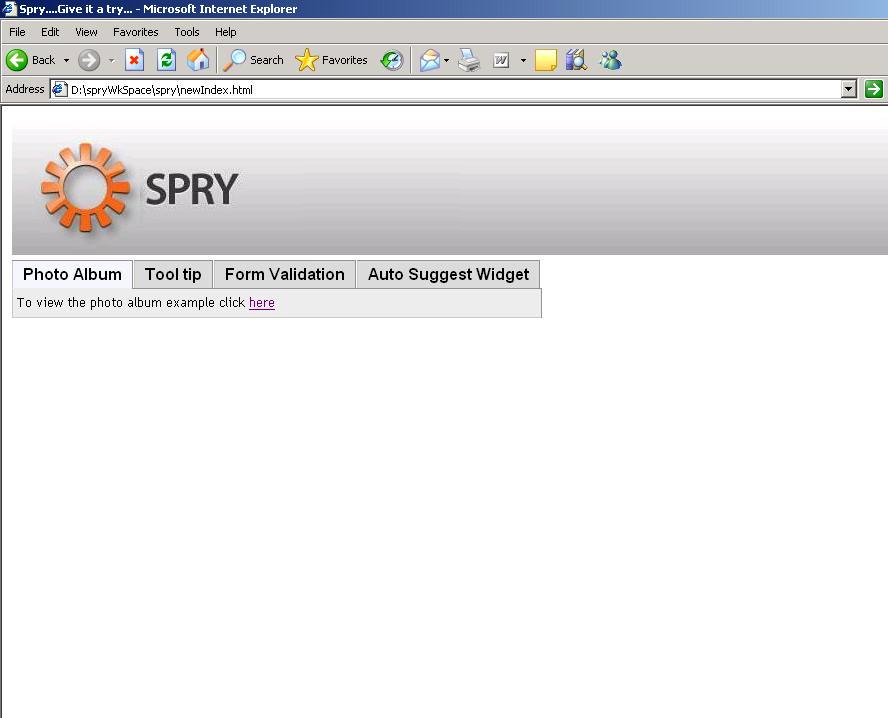
image12
Fig1: Tabbed Panels

You can set a panel to be open when the page containing the Tabbed Panels widget loads in a browser.
Set the defaultTab option in the constructor as follows:


<script type="text/javascript">
var TabbedPanels1 = new
Spry.Widget.TabbedPanels("TabbedPanels1", { defaultTab: 0 });
</script>
Note: The Tabbed Panels widget uses a zero-based counting system, so setting the value to 0 opens the first tabbed panel.

Autosuggest

This feature is used for the Search box where the matching search hints will be displayed to the user, underneath the text field. This matching results can thereby be selected by the user.

The autosuggest widget has the container DIV, an input DIV and another DIV tag which contains the search results.
<div id="productSampleTable" class="container"
style="float:left">
<br />
<form method="get" onsubmit="return validate(this);">
<input type="text" id="productFilter" name="tanya"/>
<div id="productMenuTable" spry:region="dsProducts2">
<table>
<tr spry:repeat="dsProducts2"
spry:suggest="{name}">
<td class="list"><div>{name}</div></td>
</tr>
</table>
</div>
<input type="submit" value="submit">
</form>
</div>
<script type="text/javascript">
validate = function(formEl)
{
var inputs = formEl.getElementsByTagName('input');
var typedValue = ''
for (var i=0; i < inputs.length; i++)
{
if
(inputs[i].getAttribute('type').toLowerCase() == 'text'){
typedValue +=' '+inputs[i].value;
inputs[i].value = '';
}
}
alert('Entry: \n' + typedValue);
return false;
}
var as2 = new
Spry.Widget.AutoSuggest("productSampleTable",
"productMenuTable", "dsProducts2", 'name');
</script>
The constructor has the four required values and an optional value.

The outer DIV is the main container of the widget. The ID attribute is reference by the constructor, hence an mandatory field

The widget contains a text field for the search term.

The inner DIV is the container for the results. The container also includes a spry region so that it can display the results.
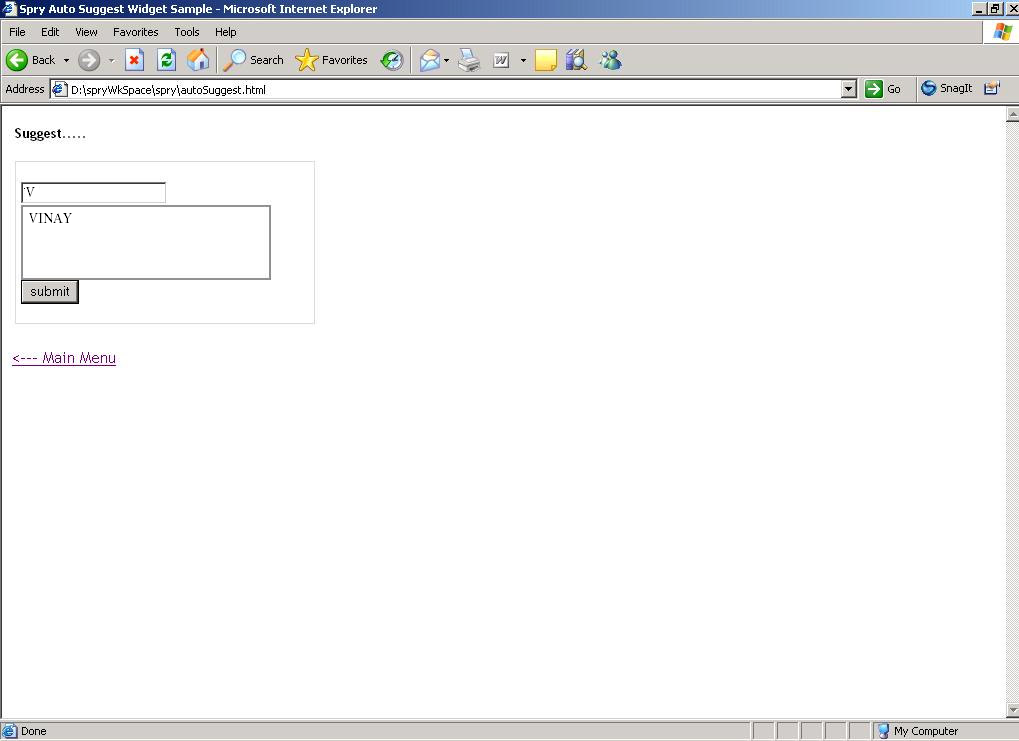
image32
Fig:2 AutoSuggest Example

Tooltip


The tooltip widget gives the flexibility to the user to move the mouse over a desired content to reveal the additional information.

For the implementation of tooltip, the file SpryTooltip.js is an important resource to be included in the code.
<div id="container">This is the tooltip content</div>
<script type="text/javascript">
var tt_one = new Spry.Widget.Tooltip("container","#trigger");
</script>
The arguments for the constructor are:

The ID of the tooltip container.

The CSS selector of the trigger. Notice that we have to put the # in front of this ID, to transform the ID in a CSS selector. The selector can specify an element ID, can be a class name, HTML tag name or a more complex selector as a combination of the these.

Please refer the figure below for the implementation.
image31
Fig3. ToolTip

Photo Gallery


The implementation for display for photo galley includes the CSS definitions for display of thumbnails and when clicked on any of the thumbnails, corresponding pictures are displayed. This path as well as other display properties for these thumbnails and pictures are provided in the xml file

A snippet of the file image.xml is as below.
<photo
path = "111.bmp"
width = "263"
height = "350"
thumbpath = "travel_01.jpg"
thumbwidth = "56"
thumbheight = "75">
</photo>
The data set is created in the html file with the use of following code snippet.
<script type="text/javascript">
var gallery = new Spry.Data.XMLDataSet("image.xml",
"/gallery/photos/photo");
var data = new Spry.Data.XMLDataSet("image.xml",
"/gallery");
</script>
The snapshot of the application is as follows:
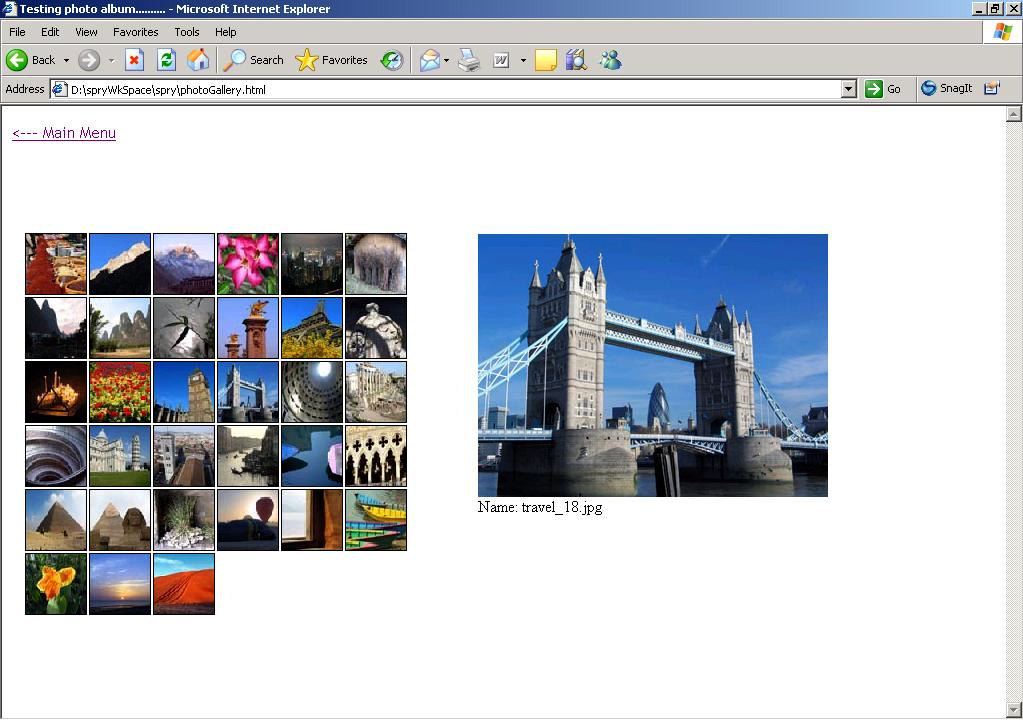
image21
Fig 4: Photo Gallery

Advantages of Spry


  • Helps building interactive user interfaces with minimal use of JavaScript and HTML.
  • Often used with Dremweaver.
  • Spry effects can be modified with desired changes in the CSS and JavaScript.
  • No working knowledge required of AJAX functionality for its usage with Spry.


References
  • http://labs.adobe.com
  • JavaScript Usage Ideas http://www.webmonkey.com/webmonkey/06/21/index3a.html?tw=programming

Spry…!!! - A Framework for AJAX

Introduction

Spry is an AJAX based framework which consists of JavaScript library that provides AJAX functionality enabling designers to provide rich interfaces to its users.

Background

Most of the web designers are inclined towards creating good and vibrant interfaces but are not sure how to get started with AJAX. Considering the steep learning curve for AJAX, an utmost need is felt by the developers for and HTMLcentric framework which can help add basic functionality and interactivity to the pages.

Purpose

Spry is an easy to use and moreover a HTML-Centric framework consisting of JavaScript libraries, and easy to implement for users with basic knowledge of HTML, CSS and JavaScript.

Implementation

The implementation of spry consists of two basic prerequisites.


  • Spry data set
  • Spry dynamic region


A spry data set is an essential requirement for spry pages to work. A spry data set is a JavaScript object. When the user opens the spry page, this object is created and the data is loaded from a XML source. Once the Spry data set is created, the data is displayed in the Spry dynamic region. Before the creation of Spry data sets the necessary files have to be obtained (xpath.js & SpryData.js)*. The file xpath.js is used since it allows the usage of complex XPATH expressions when creating data sets. The file SpryData.js contains the spry data library. The link for both these files need to be present in the HTML file created.

The SpryData.js file is dependent on xpath.js file. Hence it is important that the link for the file xpath.js file comes first in the code.

Some of the functionalities considered in this document include:
  • Widgets – Tabbed panels
  • Autosuggest
  • Tool tip
  • Photo Gallery
* The files are to be obtained from adobe website(http://labs.adobe.com/technologies/spry/) Spry_P1_6_10-01.zip

The details for implementation of each of the above functionalities are as follows:

Widgets

Widgets being a common feature of Ajax frameworks, play a wide role in interactive user interfaces. A widget is a block of HTML, CSS and JavaScript that encapsulates the piece of data for the advanced user interface. The commonly used widgets include trees and tabbed interfaces. Use of these widgets requires advanced coding skills with the conventional frameworks.

Spry consists of HTML, CSS and custom Spry attributes. There are no additional learning for custom tags included with Spry. This makes it easier to use and implement.

Example of a Spry widget.


<div id="TabbedPanels1" class="TabbedPanels">
<ul class="TabbedPanelsTabGroup">
<li><a href="">Photo Album</a></li>
<li><a href="">Tool tip</a></li>
<li><a href="">Form Validation</a></li>
<li><a href="">Auto Suggest Widget</a></li>
</ul>
<div id="contentGroup">
<div class="TabbedPanelsContent" id="widget1">
<table>
<!-- staaart here-->
To view the photo album example click <a
href="D:\spryWkSpace\Spry\photoGallery.html"> here </a>
<!-- end here -->
</table>
</div>
<script type="text/javascript" language="javascript">
function InitPage(){
Spry.$$("ul.TabbedPanelsTabGroup >
li").addClassName("TabbedPanelsTab");
Spry.$$("#contentGroup").addClassName("TabbedPanelsContentGroup");
Spry.$$(".TabbedPanelsTab").setAttribute("tabindex", "0");
Spry.$$(".TabbedPanels").forEach(function(n) { new
Spry.Widget.TabbedPanels(n);});
}
Spry.Utils.addLoadListener(InitPage);
</script>


From the code above it is easy to figure out how to build a tabbed panel.

Main container DIV

A DIV for each panel

A DIV for panel header

A DIV for the content.

One of these kinds includes working with tabbed panels:

This is basically used to store the contents in the compact space. This allows the designer to reveal and hide the contents simultaneously by clicking the tabs. In tabbed panel widget only one content panel is open at any given time. The figure shows the working example for the same.
image12
Fig1: Tabbed Panels

You can set a panel to be open when the page containing the Tabbed Panels widget loads in a browser.
Set the defaultTab option in the constructor as follows:


<script type="text/javascript">
var TabbedPanels1 = new
Spry.Widget.TabbedPanels("TabbedPanels1", { defaultTab: 0 });
</script>
Note: The Tabbed Panels widget uses a zero-based counting system, so setting the value to 0 opens the first tabbed panel.

Autosuggest

This feature is used for the Search box where the matching search hints will be displayed to the user, underneath the text field. This matching results can thereby be selected by the user.

The autosuggest widget has the container DIV, an input DIV and another DIV tag which contains the search results.
<div id="productSampleTable" class="container"
style="float:left">
<br />
<form method="get" onsubmit="return validate(this);">
<input type="text" id="productFilter" name="tanya"/>
<div id="productMenuTable" spry:region="dsProducts2">
<table>
<tr spry:repeat="dsProducts2"
spry:suggest="{name}">
<td class="list"><div>{name}</div></td>
</tr>
</table>
</div>
<input type="submit" value="submit">
</form>
</div>
<script type="text/javascript">
validate = function(formEl)
{
var inputs = formEl.getElementsByTagName('input');
var typedValue = ''
for (var i=0; i < inputs.length; i++)
{
if
(inputs[i].getAttribute('type').toLowerCase() == 'text'){
typedValue +=' '+inputs[i].value;
inputs[i].value = '';
}
}
alert('Entry: \n' + typedValue);
return false;
}
var as2 = new
Spry.Widget.AutoSuggest("productSampleTable",
"productMenuTable", "dsProducts2", 'name');
</script>
The constructor has the four required values and an optional value.

The outer DIV is the main container of the widget. The ID attribute is reference by the constructor, hence an mandatory field

The widget contains a text field for the search term.

The inner DIV is the container for the results. The container also includes a spry region so that it can display the results.
image32
Fig:2 AutoSuggest Example

Tooltip


The tooltip widget gives the flexibility to the user to move the mouse over a desired content to reveal the additional information.

For the implementation of tooltip, the file SpryTooltip.js is an important resource to be included in the code.
<div id="container">This is the tooltip content</div>
<script type="text/javascript">
var tt_one = new Spry.Widget.Tooltip("container","#trigger");
</script>
The arguments for the constructor are:

The ID of the tooltip container.

The CSS selector of the trigger. Notice that we have to put the # in front of this ID, to transform the ID in a CSS selector. The selector can specify an element ID, can be a class name, HTML tag name or a more complex selector as a combination of the these.

Please refer the figure below for the implementation.
image31
Fig3. ToolTip

Photo Gallery


The implementation for display for photo galley includes the CSS definitions for display of thumbnails and when clicked on any of the thumbnails, corresponding pictures are displayed. This path as well as other display properties for these thumbnails and pictures are provided in the xml file

A snippet of the file image.xml is as below.
<photo
path = "111.bmp"
width = "263"
height = "350"
thumbpath = "travel_01.jpg"
thumbwidth = "56"
thumbheight = "75">
</photo>
The data set is created in the html file with the use of following code snippet.
<script type="text/javascript">
var gallery = new Spry.Data.XMLDataSet("image.xml",
"/gallery/photos/photo");
var data = new Spry.Data.XMLDataSet("image.xml",
"/gallery");
</script>
The snapshot of the application is as follows:
image21
Fig 4: Photo Gallery

Advantages of Spry


  • Helps building interactive user interfaces with minimal use of JavaScript and HTML.
  • Often used with Dremweaver.
  • Spry effects can be modified with desired changes in the CSS and JavaScript.
  • No working knowledge required of AJAX functionality for its usage with Spry.


References
  • http://labs.adobe.com
  • JavaScript Usage Ideas http://www.webmonkey.com/webmonkey/06/21/index3a.html?tw=programming

JavaScript - Most Misunderstood Programming Language

JavaScript, aka Mocha, aka LiveScript, aka JScript, aka ECMAScript, is one of the world's most popular programming languages. Virtually every personal computer in the world has at least one JavaScript interpreter installed on it and in active use. JavaScript's popularity is due entirely to its role as the scripting language of the WWW.

Despite its popularity, few know that JavaScript is a very nice dynamic object-oriented general-purpose programming language. How can this be a secret? Why is this language so misunderstood?

The Name

The Java- prefix suggests that JavaScript is somehow related to Java, that it is a subset or less capable version of Java. It seems that the name was intentionally selected to create confusion, and from confusion comes misunderstanding. JavaScript is not interpreted Java. Java is interpreted Java. JavaScript is a different language.

JavaScript has a syntactic similarity to Java, much as Java has to C. But it is no more a subset of Java than Java is a subset of C. It is better than Java in the applications that Java (fka Oak) was originally intended for.

JavaScript was not developed at Sun Microsystems, the home of Java. JavaScript was developed at Netscape. It was originally called LiveScript, but that name wasn't confusing enough.

The -Script suffix suggests that it is not a real programming language, that a scripting language is less than a programming language. But it is really a matter of specialization. Compared to C, JavaScript trades performance for expressive power and dynamism.

Lisp in C's Clothing

JavaScript's C-like syntax, including curly braces and the clunky for statement, makes it appear to be an ordinary procedural language. This is misleading because JavaScript has more in common with functional languages like Lisp or Scheme than with C or Java. It has arrays instead of lists and objects instead of property lists. Functions are first class. It has closures. You get lambdas without having to balance all those parens.

Typecasting

JavaScript was designed to run in Netscape Navigator. Its success there led to it becoming standard equipment in virtually all web browsers. This has resulted in typecasting. JavaScript is the George Reeves of programming languages. JavaScript is well suited to a large class of non-Web-related applications

Moving Target

The first versions of JavaScript were quite weak. They lacked exception handling, inner functions, and inheritance. In its present form, it is now a complete object-oriented programming language. But many opinions of the language are based on its immature forms.

The ECMA committee that has stewardship over the language is developing extensions which, while well intentioned, will aggravate one of the language's biggest problems: There are already too many versions. This creates confusion.

Design Errors

No programming language is perfect. JavaScript has its share of design errors, such as the overloading of + to mean both addition and concatenation with type coercion, and the error-prone with statement should be avoided. The reserved word policies are much too strict. Semicolon insertion was a huge mistake, as was the notation for literal regular expressions. These mistakes have led to programming errors, and called the design of the language as a whole into question. Fortunately, many of these problems can be mitigated with a good lint program.

The design of the language on the whole is quite sound. Surprisingly, the ECMAScript committee does not appear to be interested in correcting these problems. Perhaps they are more interested in making new ones.

Lousy Implementations

Some of the earlier implementations of JavaScript were quite buggy. This reflected badly on the language. Compounding that, those implementations were embedded in horribly buggy web browsers.

Bad Books

Nearly all of the books about JavaScript are quite awful. They contain errors, poor examples, and promote bad practices. Important features of the language are often explained poorly, or left out entirely. I have reviewed dozens of JavaScript books, and I can only recommend one: JavaScript: The Definitive Guide (5th Edition) by David Flanagan. (Attention authors: If you have written a good one, please send me a review copy.)

Substandard Standard

The official specification for the language is published by ECMA. The specification is of extremely poor quality. It is difficult to read and very difficult to understand. This has been a contributor to the Bad Book problem because authors have been unable to use the standard document to improve their own understanding of the language. ECMA and the TC39 committee should be deeply embarrassed.

Amateurs

Most of the people writing in JavaScript are not programmers. They lack the training and discipline to write good programs. JavaScript has so much expressive power that they are able to do useful things in it, anyway. This has given JavaScript a reputation of being strictly for the amateurs, that it is not suitable for professional programming. This is simply not the case.

Object-Oriented

Is JavaScript object-oriented? It has objects which can contain data and methods that act upon that data. Objects can contain other objects. It does not have classes, but it does have constructors which do what classes do, including acting as containers for class variables and methods. It does not have class-oriented inheritance, but it does have prototype-oriented inheritance.

The two main ways of building up object systems are by inheritance (is-a) and by aggregation (has-a). JavaScript does both, but its dynamic nature allows it to excel at aggregation.

Some argue that JavaScript is not truly object oriented because it does not provide information hiding. That is, objects cannot have private variables and private methods: All members are public.

But it turns out that JavaScript objects can have private variables and private methods. (Click here now to find out how.) Of course, few understand this because JavaScript is the world's most misunderstood programming language.

Some argue that JavaScript is not truly object oriented because it does not provide inheritance. But it turns out that JavaScript supports not only classical inheritance, but other code reuse patterns as well.

JavaScript - Most Misunderstood Programming Language

JavaScript, aka Mocha, aka LiveScript, aka JScript, aka ECMAScript, is one of the world's most popular programming languages. Virtually every personal computer in the world has at least one JavaScript interpreter installed on it and in active use. JavaScript's popularity is due entirely to its role as the scripting language of the WWW.

Despite its popularity, few know that JavaScript is a very nice dynamic object-oriented general-purpose programming language. How can this be a secret? Why is this language so misunderstood?

The Name

The Java- prefix suggests that JavaScript is somehow related to Java, that it is a subset or less capable version of Java. It seems that the name was intentionally selected to create confusion, and from confusion comes misunderstanding. JavaScript is not interpreted Java. Java is interpreted Java. JavaScript is a different language.

JavaScript has a syntactic similarity to Java, much as Java has to C. But it is no more a subset of Java than Java is a subset of C. It is better than Java in the applications that Java (fka Oak) was originally intended for.

JavaScript was not developed at Sun Microsystems, the home of Java. JavaScript was developed at Netscape. It was originally called LiveScript, but that name wasn't confusing enough.

The -Script suffix suggests that it is not a real programming language, that a scripting language is less than a programming language. But it is really a matter of specialization. Compared to C, JavaScript trades performance for expressive power and dynamism.

Lisp in C's Clothing

JavaScript's C-like syntax, including curly braces and the clunky for statement, makes it appear to be an ordinary procedural language. This is misleading because JavaScript has more in common with functional languages like Lisp or Scheme than with C or Java. It has arrays instead of lists and objects instead of property lists. Functions are first class. It has closures. You get lambdas without having to balance all those parens.

Typecasting

JavaScript was designed to run in Netscape Navigator. Its success there led to it becoming standard equipment in virtually all web browsers. This has resulted in typecasting. JavaScript is the George Reeves of programming languages. JavaScript is well suited to a large class of non-Web-related applications

Moving Target

The first versions of JavaScript were quite weak. They lacked exception handling, inner functions, and inheritance. In its present form, it is now a complete object-oriented programming language. But many opinions of the language are based on its immature forms.

The ECMA committee that has stewardship over the language is developing extensions which, while well intentioned, will aggravate one of the language's biggest problems: There are already too many versions. This creates confusion.

Design Errors

No programming language is perfect. JavaScript has its share of design errors, such as the overloading of + to mean both addition and concatenation with type coercion, and the error-prone with statement should be avoided. The reserved word policies are much too strict. Semicolon insertion was a huge mistake, as was the notation for literal regular expressions. These mistakes have led to programming errors, and called the design of the language as a whole into question. Fortunately, many of these problems can be mitigated with a good lint program.

The design of the language on the whole is quite sound. Surprisingly, the ECMAScript committee does not appear to be interested in correcting these problems. Perhaps they are more interested in making new ones.

Lousy Implementations

Some of the earlier implementations of JavaScript were quite buggy. This reflected badly on the language. Compounding that, those implementations were embedded in horribly buggy web browsers.

Bad Books

Nearly all of the books about JavaScript are quite awful. They contain errors, poor examples, and promote bad practices. Important features of the language are often explained poorly, or left out entirely. I have reviewed dozens of JavaScript books, and I can only recommend one: JavaScript: The Definitive Guide (5th Edition) by David Flanagan. (Attention authors: If you have written a good one, please send me a review copy.)

Substandard Standard

The official specification for the language is published by ECMA. The specification is of extremely poor quality. It is difficult to read and very difficult to understand. This has been a contributor to the Bad Book problem because authors have been unable to use the standard document to improve their own understanding of the language. ECMA and the TC39 committee should be deeply embarrassed.

Amateurs

Most of the people writing in JavaScript are not programmers. They lack the training and discipline to write good programs. JavaScript has so much expressive power that they are able to do useful things in it, anyway. This has given JavaScript a reputation of being strictly for the amateurs, that it is not suitable for professional programming. This is simply not the case.

Object-Oriented

Is JavaScript object-oriented? It has objects which can contain data and methods that act upon that data. Objects can contain other objects. It does not have classes, but it does have constructors which do what classes do, including acting as containers for class variables and methods. It does not have class-oriented inheritance, but it does have prototype-oriented inheritance.

The two main ways of building up object systems are by inheritance (is-a) and by aggregation (has-a). JavaScript does both, but its dynamic nature allows it to excel at aggregation.

Some argue that JavaScript is not truly object oriented because it does not provide information hiding. That is, objects cannot have private variables and private methods: All members are public.

But it turns out that JavaScript objects can have private variables and private methods. (Click here now to find out how.) Of course, few understand this because JavaScript is the world's most misunderstood programming language.

Some argue that JavaScript is not truly object oriented because it does not provide inheritance. But it turns out that JavaScript supports not only classical inheritance, but other code reuse patterns as well.

what’s a mashup?

Definition : Mashup
  • “A mashupis a website or application that combines content from more than one source into an integrated experience
  • Content used in mashups is typically sourced from a third party via a public interfaceor API
  • Other methods of sourcing content for mashups include Web feeds(e.g. RSS or Atom) and JavaScript”
  • That encourage software creators to expose their applications as sets of reusable servicesand encourage others use the good pieces of what they provide in new and innovative ways, easily wiring together the little pieces
  • On the demand-sidethere is a rising comfort with and expectation of finding a throw-away application to do just the one thing you needed when you need it

Make your own mashup

Pick a subjectDecide what data sources
Decide where your data is coming from

  • Programmableweb.com
  • Total APIs: 431
  • Total Mashups Listed: 1900
  • Mashup/Day: 3.16
  • Weigh your coding skills: JavaScript, AJAX, Ruby, etc.
pending -------------

what’s a mashup?

Definition : Mashup
  • “A mashupis a website or application that combines content from more than one source into an integrated experience
  • Content used in mashups is typically sourced from a third party via a public interfaceor API
  • Other methods of sourcing content for mashups include Web feeds(e.g. RSS or Atom) and JavaScript”
  • That encourage software creators to expose their applications as sets of reusable servicesand encourage others use the good pieces of what they provide in new and innovative ways, easily wiring together the little pieces
  • On the demand-sidethere is a rising comfort with and expectation of finding a throw-away application to do just the one thing you needed when you need it

Make your own mashup

Pick a subjectDecide what data sources
Decide where your data is coming from

  • Programmableweb.com
  • Total APIs: 431
  • Total Mashups Listed: 1900
  • Mashup/Day: 3.16
  • Weigh your coding skills: JavaScript, AJAX, Ruby, etc.
pending -------------

Sep 25, 2009

Documentation generator for JavaScript

This project JsDoc Toolkit found in Google Code Repos, an automatic documentation generation tool for JavaScript. It is written in JavaScript and is run from a command line (or terminal). using Java and Mozilla's Rhino JavaScript runtime engine. Using this tool you can automatically turn JavaDoc-like comments in your JavaScript source code into published output files, such as HTML or XML.

Basic requirements:

Running JsDoc Toolkit requires you to have Java installed on your
computer. For more information see http://www.java.com/getjava/

Source : http://code.google.com/p/jsdoc-toolkit/

I tried this tool, may be this project will help you.

Screenshots

image

image

image

Documentation generator for JavaScript

This project JsDoc Toolkit found in Google Code Repos, an automatic documentation generation tool for JavaScript. It is written in JavaScript and is run from a command line (or terminal). using Java and Mozilla's Rhino JavaScript runtime engine. Using this tool you can automatically turn JavaDoc-like comments in your JavaScript source code into published output files, such as HTML or XML.

Basic requirements:

Running JsDoc Toolkit requires you to have Java installed on your
computer. For more information see http://www.java.com/getjava/

Source : http://code.google.com/p/jsdoc-toolkit/

I tried this tool, may be this project will help you.

Screenshots

image

image

image

Modular CSS framework for building classy websites

The Classy Web Design Framework

A modular framework for rapid web development
Sparkl combines POSH markup, Bulletproof CSS and Unobtrusive JavaScript into one easy to use web development framework that makes it simple to create bulletproof websites that conform to web standards. It uses a modular framework, allowing you to use what you need and leave out what you don't.
Source : http://code.google.com/p/sparkl/

Modular CSS framework for building classy websites

The Classy Web Design Framework

A modular framework for rapid web development
Sparkl combines POSH markup, Bulletproof CSS and Unobtrusive JavaScript into one easy to use web development framework that makes it simple to create bulletproof websites that conform to web standards. It uses a modular framework, allowing you to use what you need and leave out what you don't.
Source : http://code.google.com/p/sparkl/

Sep 23, 2009

GWTQuery – jQuery in GWT

I used jQuery in my application for Auto-complete / Auto populating select box feature and Animations. It helps to keep code simple and concise. I like JQuery a lot.

Do you know Google is using JQuery for Google Code site and they written a jQuery-like API in GWT, it is called GWTQuery.

First we will see simple tutorial for JQuery and GWT Query. In my next post we will discuss the difference and performance of GWTQuery and jQuery. Ref : Ray Cromwell ( Timepedia.org )

What is jQuery ?

jQuery is great library for developing ajax based application. jQuery is great library for the JavaScript programmers, which simplifies the development of web 2.0 applications. You can use jQuery to develop cool web 2.0 applications. jQuery helps the programmers to keep code simple and concise. The jQuery library is designed to keep the things very simple and reusable.

jQuery library simplifies the process of traversal of HTML DOM tree. You can use jQuery to handle events, perform animation, and add the ajax support into your web applications with ease.

You can use simple JavaScript to perform all the functions that jQuery provides. Then why jQuery? The jQuery library is providing many easy to use functions and methods to make rich applications. These functions are very easy to learn and even a designer can learn it fast. Due to these features jQuery is very popular and in high demand among the developers. You can use jQuery in all the web based applications irrespective of the technology.

jQuery is java script and can be used with JSP, Servlets, ASP, PHP, CGI and almost all the web programming languages.

The jQuery code is very simple and easy to learn.

Here are the features of jQuery
  • DOM element selections functions
  • DOM traversal and modification
  • Events
  • CSS manipulation
  • Effects and animations
  • Ajax
  • Extensibility
  • Utilities - such as browser version and the each function.
  • JavaScript Plugins
jQuery to Retrieve Server's Current Time

This example shows you how to load the content of simple text file and then show on the text box.

Our jQuery Load Content example will do the following work
  • Web page is displayed with a button "Load Content" and a blank text box
  • User clicks on the "Load Content" button.
  • jQuery loads the context of a text file "testFile.txt" and displays in the text areaAfter completing this example you will be able to use jQuery to Load the content from server side text file and show it to the user.
Code: HTML Page

Here is the code of "showContent.jsp" file
<html xmlns="http://www.w3.org/1999/xhtml" xml:lang="en" lang="en">
<head>
<title>Show Content</title>
<script type="text/javascript" src="jquery-1.2.6.js"></script>
<script type="text/javascript">
function contentDisp()
{
$.ajax({
url : "textContent.jsp",
success : function (data) {
$("#contentArea").html(data);
}
});
}
</script>
</head>
<body>
<table width="100%" border=0>
<tr><td>&nbsp;</td><td>&nbsp;</td></tr>
<tr><td width="30%" >&nbsp;</td><td style="color:blue;" width="70%">
Download Content Example</td></tr>
<tr><td>&nbsp;</td><td ><input type="button" value="Click" onClick="
contentDisp();">&nbsp;<span style="color:blue;"></span></td></tr>
<tr><td>&nbsp;</td><td>
<textarea id="contentArea" rows="10" cols="50"></textarea>
</td>
</tr>
</table>
</body>
</html>

jQuery code in the page

The following jQuery code retrieves the data from server and display in the text area.
function contentDisp()
{
$.ajax({
url : "textContent.jsp",
success : function (data) {
$("#contentArea").html(data);
}
});
}
Content of the text file

Here is the content of the text file: Welcome to jQuery World
Learn how you can do a lot of work with small code.

jQuery is here to help us in achieving high result with less coding.

jQuery is great!!!!
Open your browse and type http://localhost:8080/showContent.jsp and press enter. You will see the click button in browser, click on the "Click" button. The program will fetch the text data from database and display in the text area.

GWTQUERY

  • JQuery-like API in GWT
  • Uses GWT 1.5 language features for succinct code
  • Run-time CSS3 Selector parsing and evaluation
  • Compile-time CSS3 Selector parsing
  • Leverages modern browser features when available:
  • XPath (document.evaluate)
  • W3C CSS Selector API (document.querySelectorAll)
  • getElementsByClassName()
Example

Runtime Evaluation

Find all “menus”, make first element text “Hello”
import gwtquery.client.GwtQuery;
import static gwtquery.client.GwtQuery.$;public class GwtQueryModule implements EntryPoint {
public void onModuleLoad() {
$(“ul.menu > li:first-child”).html(“hello”);
}
}
What does the $(selector) function translate into?
  • On Safari 3.1
  • document.querySelectorAll(selector)
  • On Firefox, Opera, older Safari
  • Lots of Regexp parsing to compute xpathExpression
  • document.evaluate(xpathExpression)
  • On IE < 8 and others, a bunch of Regexp and DOM calls
  • Note: Each browser gets separately compiled JS
Digression: Generators
  • Feature of Deferred Binding Mechanism
  • GWT.create(RequestedType.class)
  • Replace requested type with generated implementation
  • Turns into new GeneratedType()
Compile-time parsing
  • Selectors usually literal strings, known at compile time
  • Why parse and translate these at runtime?!
  • Perform parsing and translation to XPath or JS-DOM navigation calls at compile-time
public MySelectors extends Selectors {
@Selector(“ul.menu > li:first-child”)
GQuery allFirstMenuItems();
}MySelectors selector = GWT.create(MySelectors.class);

selector.allFirstMenuItems().html(“hello”);

  • GWT.create(MySelectors.class) triggers Generator
  • Different Generator for each browser (DOM, XPath, etc)
  • Generator creates implementation of MySelectors interface
  • For each method with a @Selector annotation
  • Parses CSS Selector, emits implementation of method
  • Compiler inlines method, elides everything else
Compile Time Parsing: Bottom Line

ul > li:first-child

becomes

document.evaluate(“ul/li[position() = 1]”)

How big is the output?
  • jQuery 1.2.3
  • ~3400 lines of Javascript
  • 98kb unprocessed source
  • 15kb obfuscated and gzipped
  • GwtQuery
  • ~3400 lines of Java
  • 116kb on disk
  • How big is it compiled?
  • 15kb or larger?
  • How about 7kb, a 50% reduction?
  • 3kb sounds about right!
  • 712 bytes is the answer!
  • Smaller than single packet, HTTP headers
Caveats and Objections
  • Trivial example
  • More reasonable example would exercise larger part of API and reduce amount of pruned code
  • Example shows how aggressive GWT optimizer is past GWT critics have used Hello World examples to demonstrate purported “bloat”
Demo: Progressively Enhancing <UL> into PowerPoint-like slide transitions

Sample Code
<div class="slide transition-fade">
Slide 1
<ul class="transition-fade">
<li>Point One</li>
<li>Point Two</li>
<li>Point Three</li>
</ul>
</div>
<div class="slide transition-fade">
Slide 2
<ul class="transition-appear">
<li>Slide 2 Point One</li>
<li>Slide 2 Point Two</li>
<li>Slide 3 Point Three</li>
</ul>
</div>
Sample Code for Selectors needed
interface Slide extends Selectors {
// find all LI elements rooted at ctx
@Selector("li")
NodeList<Element> slideBulletsCtx(Node ctx);// Find all DIV elements with class 'slide'
@Selector("div.slide")
NodeList<Element> allSlides();
}

Sample Code for Event Handling
final Slide s = GWT.create(Slide.class);
$(Document.get().getBody()).click(new Function() {
int curSlide = 0;
int curBullet = 0;
GQuery slides = $(s.allSlides());
GQuery bullets = $(s.slideBulletsCtx(slides.get(curSlide)));public boolean f(Event e) {
if (curBullet < bullets.size())
bullets.eq(curBullet++).as(Effects).fadeIn();
else
bullets.css("opacity","0");
slides.eq(curSlide).css("display", "none");
curSlide++;
if(curSlide == slides.size()) curSlide = 0;
curBullet = 0;
bullets = $(s.slideBulletsCtx(slides.get(curSlide)));
slides.eq(curSlide).css("display","block")
.as(Effects).fadeIn();
return true;
}
});

Sample of Generated Output for Selector “.slide li” W3C Selector API version

public class SlideNativeImpl extends SelectorEngine implements MySelectors {
public final NodeList<Element> slideBullets() {
return querySelectorAll(".slide li");
}
}
XPath Version
public class SlideXPathImpl extends SelectorEngine implements Slide {
public final NodeList<Element> slideBullets() {
return xpathEvaluate("./descendant::*[contains(concat(' ', @class, ' '), ' slide ')]/descendant::li");
}
}
Live Demo

GWTQuery – jQuery in GWT

I used jQuery in my application for Auto-complete / Auto populating select box feature and Animations. It helps to keep code simple and concise. I like JQuery a lot.

Do you know Google is using JQuery for Google Code site and they written a jQuery-like API in GWT, it is called GWTQuery.

First we will see simple tutorial for JQuery and GWT Query. In my next post we will discuss the difference and performance of GWTQuery and jQuery. Ref : Ray Cromwell ( Timepedia.org )

What is jQuery ?

jQuery is great library for developing ajax based application. jQuery is great library for the JavaScript programmers, which simplifies the development of web 2.0 applications. You can use jQuery to develop cool web 2.0 applications. jQuery helps the programmers to keep code simple and concise. The jQuery library is designed to keep the things very simple and reusable.

jQuery library simplifies the process of traversal of HTML DOM tree. You can use jQuery to handle events, perform animation, and add the ajax support into your web applications with ease.

You can use simple JavaScript to perform all the functions that jQuery provides. Then why jQuery? The jQuery library is providing many easy to use functions and methods to make rich applications. These functions are very easy to learn and even a designer can learn it fast. Due to these features jQuery is very popular and in high demand among the developers. You can use jQuery in all the web based applications irrespective of the technology.

jQuery is java script and can be used with JSP, Servlets, ASP, PHP, CGI and almost all the web programming languages.

The jQuery code is very simple and easy to learn.

Here are the features of jQuery
  • DOM element selections functions
  • DOM traversal and modification
  • Events
  • CSS manipulation
  • Effects and animations
  • Ajax
  • Extensibility
  • Utilities - such as browser version and the each function.
  • JavaScript Plugins
jQuery to Retrieve Server's Current Time

This example shows you how to load the content of simple text file and then show on the text box.

Our jQuery Load Content example will do the following work
  • Web page is displayed with a button "Load Content" and a blank text box
  • User clicks on the "Load Content" button.
  • jQuery loads the context of a text file "testFile.txt" and displays in the text areaAfter completing this example you will be able to use jQuery to Load the content from server side text file and show it to the user.
Code: HTML Page

Here is the code of "showContent.jsp" file
<html xmlns="http://www.w3.org/1999/xhtml" xml:lang="en" lang="en">
<head>
<title>Show Content</title>
<script type="text/javascript" src="jquery-1.2.6.js"></script>
<script type="text/javascript">
function contentDisp()
{
$.ajax({
url : "textContent.jsp",
success : function (data) {
$("#contentArea").html(data);
}
});
}
</script>
</head>
<body>
<table width="100%" border=0>
<tr><td>&nbsp;</td><td>&nbsp;</td></tr>
<tr><td width="30%" >&nbsp;</td><td style="color:blue;" width="70%">
Download Content Example</td></tr>
<tr><td>&nbsp;</td><td ><input type="button" value="Click" onClick="
contentDisp();">&nbsp;<span style="color:blue;"></span></td></tr>
<tr><td>&nbsp;</td><td>
<textarea id="contentArea" rows="10" cols="50"></textarea>
</td>
</tr>
</table>
</body>
</html>

jQuery code in the page

The following jQuery code retrieves the data from server and display in the text area.
function contentDisp()
{
$.ajax({
url : "textContent.jsp",
success : function (data) {
$("#contentArea").html(data);
}
});
}
Content of the text file

Here is the content of the text file: Welcome to jQuery World
Learn how you can do a lot of work with small code.

jQuery is here to help us in achieving high result with less coding.

jQuery is great!!!!
Open your browse and type http://localhost:8080/showContent.jsp and press enter. You will see the click button in browser, click on the "Click" button. The program will fetch the text data from database and display in the text area.

GWTQUERY

  • JQuery-like API in GWT
  • Uses GWT 1.5 language features for succinct code
  • Run-time CSS3 Selector parsing and evaluation
  • Compile-time CSS3 Selector parsing
  • Leverages modern browser features when available:
  • XPath (document.evaluate)
  • W3C CSS Selector API (document.querySelectorAll)
  • getElementsByClassName()
Example

Runtime Evaluation

Find all “menus”, make first element text “Hello”
import gwtquery.client.GwtQuery;
import static gwtquery.client.GwtQuery.$;public class GwtQueryModule implements EntryPoint {
public void onModuleLoad() {
$(“ul.menu > li:first-child”).html(“hello”);
}
} 
What does the $(selector) function translate into?
  • On Safari 3.1
  • document.querySelectorAll(selector)
  • On Firefox, Opera, older Safari
  • Lots of Regexp parsing to compute xpathExpression
  • document.evaluate(xpathExpression)
  • On IE < 8 and others, a bunch of Regexp and DOM calls
  • Note: Each browser gets separately compiled JS
Digression: Generators
  • Feature of Deferred Binding Mechanism
  • GWT.create(RequestedType.class)
  • Replace requested type with generated implementation
  • Turns into new GeneratedType()
Compile-time parsing
  • Selectors usually literal strings, known at compile time
  • Why parse and translate these at runtime?!
  • Perform parsing and translation to XPath or JS-DOM navigation calls at compile-time
public MySelectors extends Selectors {
@Selector(“ul.menu > li:first-child”)
GQuery allFirstMenuItems();
}MySelectors selector = GWT.create(MySelectors.class);

selector.allFirstMenuItems().html(“hello”);

  • GWT.create(MySelectors.class) triggers Generator
  • Different Generator for each browser (DOM, XPath, etc)
  • Generator creates implementation of MySelectors interface
  • For each method with a @Selector annotation
  • Parses CSS Selector, emits implementation of method
  • Compiler inlines method, elides everything else
Compile Time Parsing: Bottom Line

ul > li:first-child

becomes

document.evaluate(“ul/li[position() = 1]”)

How big is the output?
  • jQuery 1.2.3
  • ~3400 lines of Javascript
  • 98kb unprocessed source
  • 15kb obfuscated and gzipped
  • GwtQuery
  • ~3400 lines of Java
  • 116kb on disk
  • How big is it compiled?
  • 15kb or larger?
  • How about 7kb, a 50% reduction?
  • 3kb sounds about right!
  • 712 bytes is the answer!
  • Smaller than single packet, HTTP headers
Caveats and Objections
  • Trivial example
  • More reasonable example would exercise larger part of API and reduce amount of pruned code
  • Example shows how aggressive GWT optimizer is past GWT critics have used Hello World examples to demonstrate purported “bloat”
Demo: Progressively Enhancing <UL> into PowerPoint-like slide transitions

Sample Code
<div class="slide transition-fade">
Slide 1
<ul class="transition-fade">
<li>Point One</li>
<li>Point Two</li>
<li>Point Three</li>
</ul>
</div>
<div class="slide transition-fade">
Slide 2
<ul class="transition-appear">
<li>Slide 2 Point One</li>
<li>Slide 2 Point Two</li>
<li>Slide 3 Point Three</li>
</ul>
</div>
Sample Code for Selectors needed
interface Slide extends Selectors {
// find all LI elements rooted at ctx
@Selector("li")
NodeList<Element> slideBulletsCtx(Node ctx);// Find all DIV elements with class 'slide'
@Selector("div.slide")
NodeList<Element> allSlides();
}

Sample Code for Event Handling
final Slide s = GWT.create(Slide.class);
$(Document.get().getBody()).click(new Function() {
int curSlide = 0;
int curBullet = 0;
GQuery slides = $(s.allSlides());
GQuery bullets = $(s.slideBulletsCtx(slides.get(curSlide)));public boolean f(Event e) {
if (curBullet < bullets.size())
bullets.eq(curBullet++).as(Effects).fadeIn();
else
bullets.css("opacity","0");
slides.eq(curSlide).css("display", "none");
curSlide++;
if(curSlide == slides.size()) curSlide = 0;
curBullet = 0;
bullets = $(s.slideBulletsCtx(slides.get(curSlide)));
slides.eq(curSlide).css("display","block")
.as(Effects).fadeIn();
return true;
}
});

Sample of Generated Output for Selector “.slide li” W3C Selector API version
public class SlideNativeImpl extends SelectorEngine implements MySelectors {
public final NodeList<Element> slideBullets() {
return querySelectorAll(".slide li");
}
}
XPath Version
public class SlideXPathImpl extends SelectorEngine implements Slide {
public final NodeList<Element> slideBullets() {
return xpathEvaluate("./descendant::*[contains(concat(' ', @class, ' '), ' slide ')]/descendant::li");
}
}
Live Demo

Sep 22, 2009

GWT Profiling and Debugging Techniques

Profiling

The JVM is designed with a means to get information on running processes (JVMPI, and the newer JVMTI). Using these mechanisms many Java tools can report on exactly what is going on when a Java application is executing. This information includes number of objects in use, memory, threads, garbage collection and so on. Profiling can be invaluable in tuning and troubleshooting an application. The end goal of profiling is to determine exactly what is happening with an application at runtime, in great detail, and identify performance metrics and bottlenecks.


The Limitations of Hosted Mode Profiling

Profiling GWT though, is once again a bit different from what you might expect. With GWT you have access to the standard Java profiling you are likely accustomed to, but only in hosted mode. Using a Java profiler, when working in hosted mode, as you normally would (from within an IDE, or separately), yields only an intermediate sort of reference point. What happens in Java, before the GWTCompiler optimizes things, is not representative of what will happen in JavaScript. You might catch any glaring problems with your code using this method, but you will not be able to tweak end result performance.

In web mode, a JavaScript profiler can be used. This type of profiling does operate against the end result code of your application, and can yield a great deal of performance, and troubleshooting information, but also has it's own GWT related differences.

Web Mode Profiling

For detailed information, and or troubleshooting purposes when working with GWT projects in web mode, you will want to use a JavaScript profiling tool. The Mozilla Venkman Project and Firebug are two examples of excellent JavaScript debugging and profiling tools.

Problem:

How do I profile a running GWT application in web mode?

Solution:

In order to profile GWT code in web mode you first need to make sure to use the -style command line parameter with the GWT compiler and set the format to PRETTY or DETAILED. PRETTY is the recommended setting for normal profiling. If you need extra troubleshooting help, or for any other reason want extra verbosity, you can use DETAILED. If you are using the “Compile/Browse” button from the GWTShell, you can also pass the -style parameter to the shell, which will in turn hand it off to the compiler. If you leave things in the default style setting of OBF (obfuscated), you do not stand much of a chance of following the output. Ultimately after you have profiled your code, before you deploy it to a production environment, you will want to switch back and compile with the OBF style.

For example purposes we will use the Firebug “web development” plug-in for Mozilla Firefox. Firebug includes CSS and DOM inspection tools, network traffic monitoring capabilities, HTML tools, and more, in addition to excellent JavaScript profiling capabilities. Firebug can be used on all platforms where Firefox is available.

Installation of Firebug is the same as that for any Firefox plug-in, select the .xpi file from the Firebug website (http://www.getfirebug.com/), and allow it to install. Once installed, the Firefox “Tools” element on the top menu will include a new Firebug sub-menu. To see Firebug in action, after it is installed, you simply invoke Tools->Firebug->Open Firebug. Figure 1 is a screen shot of the Firebug Console window open, on the lower half of a browser screen.

Figure 1 Firebug running in the lower half of the Firefox browser, Console section open

To use Firebug with a GWT application you simply direct your browser to the GWT application and open Firebug. The simplest way to do this, assuming Firefox is your default browser, is to invoke web mode from the GWTShell via the Compile/Browse button. Using a GWT app in the shell, and invoking web mode, will invoke the GWT compiler and open a browser window directed at the compiled code (and still run any service servlets in the hosted mode shell). Then you can start Firebug (recall, Tools->Firebug) and learn a great deal of useful information about your application.

Discussion:

Using the Firebug Console you can inspect many of the components of a running AJAX application. This includes XmlHttpRequest (XHR) calls, XML errors and JavaScript information. The XHR information, request and response, including the headers, is useful in understanding how the GWT moving parts are operating. This can be invaluable in terms of troubleshooting. For example, Figure 2 shows several XHR calls made while running GWTTestMe.

Figure 2 Firebug screen shot showing XHR POST operations, including full HTTP headers, in the Console

From the Firebug Console, as seen in Figure 2, we see several important GWT details. First, the “Headers” section shows the XHR response and request headers. These indicate that a POST response was returned from a local “Apache-Coyote” server, at the path http://localhost:8888/[MODULE_NAME]/[SERVICE_NAME]. This shows us exactly where our GWT RPC is ending up, if we were using -noserver we would expect to see our external server instance being invoked here. Also the POST request includes the “referer,” which denotes exactly which of the hash named “cache.html” files was used (which specific compiled version of the application). Finally, in the “Post” and “Response” sections we see the GWT IsSerializable/Serializable objects that are passed across the wire. These are not specifically profiling tasks, but are handy related features of Firebug that can be extremely useful when working on GWT applications.


Tip

Also note that when using Firebug you can use the Console XHR information to see if “content-encoding” gzip compression is in use. This compression can greatly reduce the size of textual content client user-agents have to download. Because HTML and JavaScript are text, compression should be used (it is the default on most HTTP 1.1 servers and clients, but you should check to make sure that it is working properly).

The Firebug Console can capture many of the details details you may ever want to know about a running GWT application. The HTML, CSS, and DOM sections of Firebug are also very useful, and somewhat self-explanatory. Additionally the Net section provides network traffic and asset size relation information about each part of a running application. And, the Script section provides not only insight into the JavaScript being used, but also a full fledged debugger, with breakpoints and variable contents. Though debugging in JavaScript can be helpful, it is usually more valuable for GWT developers to debug things as Java in hosted mode, something we will come to in the next section. To “profile” a JavaScript based application, you engage the Profiler by clicking on the “Profile” link in Firebug to start and stop the profiler's data collection process.

By clicking on Profile a first time, you tell the profiler to begin paying attention. At that point you can then click around your application and perform some tasks. Then when you click Profile again, you instruct the profiler to stop and display the collected data in the Console. It is this data that can help you understand how your GWT application is working. Figure 3 is a screen shot showing the results of the Firebug profiler, which includes such concepts such as the number of calls each function received, percentage, time, and what file each is in. (Note that “own time” means time inside the function specified without recursive calls to other functions, while “time” means total time including recursive calls.)

Figure 3 Firebug Profiler screen shot showing sortable profiling data collection results

The manual profiling method using Firebug is often helpful, but you may also want to use it in a more automated fashion. To do so, you can include JavaScript methods to start and stop the profiler using the Firebug Console API. In GWT terms, if you are concerned, or curious, about a particular section of code you can use JSNI with the Console API to automatically stop and start the profiler in exact areas you specify. This, in addition to being automatic, focuses the results to just the specific portions of code you are interested in.

Once you have collected profiling data with Firebug you can then inspect the results to understand exactly how your application is operating. You need to keep in mind though, that what you are seeing is your code as optimized by the GWT compiler (unless you are using JSNI). This is key because you have to remember that the GWT compiler is fairly smart. The “optimizations” it performs should mean that you will not ever have much to “fix” as a result of your profiling, if you are using standard GWT code and allowing the compiler to do its job.

Profiling a standard GWT application, as JavaScript in web mode, is more about understanding the network calls, optimizing the number of HTTP requests made, and gleaning information to troubleshoot problems, than it is about making changes and optimizing code. You should generally see many core GWT functions at the top of the stack in your profiler results. These things you are not going to improve upon unless you start hacking on the toolkit itself. Farther down the line you should see your controller methods as JavaScript functions (again, if you are using a client side controller in the canonical GWT manner), and your actual serializable objects. Also, you will see service proxy functions and all other details concerning everything GWT is doing to manipulate the DOM, invoke RPC, and so on.

Overall Firebug, and other such JavaScript profiling tools, are very important to the GWT developer. You can use these tools to see the whole picture when it comes to your GWT application, making sure your code does what you expect. Along with profiling, another arguably even more important development tactic is debugging.

Debugging

The hosted mode browser is a running Java process, as is the GWT shell. There is a harness between these components that propagates browser based events to GWT projects running in the shell. Using this approach, you can run your GWT project and use a standard Java debugger in a variety of ways. The most common means to debug a Java project are either to run the project in process inside of an IDE, or to connect an IDE to a remotely running Java process with the Java Platform Debugger Architecture (JPDA) interface enabled and listening for connections.

These same methods can be used with GWT, to connect to, and debug your programs, through the GWT shell.

Many modern IDEs have all sorts of support for running applications, even servers, in process with the IDE; and then debugging from there. It's good to also be aware, however, that you can debug external processes pretty easily as well. This is made possible by the Java Platform Debugger Architecture (JPDA - http://java.sun.com/j2se/1.5.0/docs/guide/jpda/architecture.html).

Basically, modern JVMs have a set of profiling interfaces (one for the front end, and one for the back end), and a protocol, that work together to enable external debugging. JVMs include a native interface implementation, based on JVMTI, on the back end, and a Java interface based on JDI is used for front end debugging. The protocol that enables communication between the two layers is JDWP. Using this setup debuggers can easily connect to remote Java processes, and perform their typical beloved duties.

Problem:

How do I configure the JVM to allow a remote process to be debugged.

Solution:

Use the JPDA support built into the JVM to pass the appropriate options to the Java process on the command line, and then connect to that process with a debugger.

Discussion:

To demonstrate the concepts, let's step through an example using GWT-Maven to launch a GWT project, and then debug that project from Eclipse. To begin, an external Java process needs to be running, and that process must have been configured to pass the -Xdebug and -Xrunjdwp options to the JVM at startup (optionally the newer -agentlib:jdwp option is preferable on Java 5.0 and above VMs).

The exact options used for this example, which are passed automatically via Maven and the GWT-Maven plugin using the gwt:debug goal, are as follows:


-Xdebug -Xnoagent -Djava.compiler=NONE -Xrunjdwp:transport=dt_socket,server=y,address=3408,suspend=y

More detail about all of the options is available in the JPDA documentation ( http://java.sun.com/j2se/1.5.0/docs/guide/jpda/conninv.html#Invocation).

Basically, in this case, we are telling whatever Java process we run with these options to start and wait for a debugger to connect before continuing. Because we will be using GWT-Maven here the Java process we are controlling will ultimately be the GWTShell. On the command line this looks like what is shown in figure 4 (notice the process stopped, and is waiting for a connection on port 3408):

Figure 4 Shell session showing JVM waiting for debugger connection.

Once the process is waiting for a debugger to connect, the stage is set. The next thing to do is simply to connect with a debugger to the port shown - this is where Eclipse comes in. To connect with Eclipse you must use the "Run dialog," and select new "Remote Java Application." From there simply specify a name for the project, and the port as shown in figure 5.

Figure 5 Configuration dialog for Eclipse that demonstrates connecting to a remote process for debugging.

(Note* this screen shot shows port 1941 from a previous run, in this case it would need to be changed to 3408 to connect to the process started above.)

With that, all the pieces are in place, the JVM is running as the back end, and the IDE has connected as the front end. In this example the GWTShell continues along and launches the application, and from there you can click around to exercise the Java code. As with any typical debugging you can use breakpoints and step into and out of the code, and inspect the state as you go. Though the screen shot in figure 6 is small, you get the idea with the blue breakpoint dot and green highlighted code line:

Figure 6 Typical Eclipse debugger in use showing breakpoints.

In total the technique is very easy once you understand the roles of the components. Though this example used GWT, and GWT-Maven (something where external debugging comes in very handy), keep in mind that these concepts can be applied to any external Java process (a Tomcat server, a JBoss server, a Swing app, even an Applet - with a few caveats).

Other Debugging Tools


GWT Profiling and Debugging Techniques

Profiling

The JVM is designed with a means to get information on running processes (JVMPI, and the newer JVMTI). Using these mechanisms many Java tools can report on exactly what is going on when a Java application is executing. This information includes number of objects in use, memory, threads, garbage collection and so on. Profiling can be invaluable in tuning and troubleshooting an application. The end goal of profiling is to determine exactly what is happening with an application at runtime, in great detail, and identify performance metrics and bottlenecks.


The Limitations of Hosted Mode Profiling

Profiling GWT though, is once again a bit different from what you might expect. With GWT you have access to the standard Java profiling you are likely accustomed to, but only in hosted mode. Using a Java profiler, when working in hosted mode, as you normally would (from within an IDE, or separately), yields only an intermediate sort of reference point. What happens in Java, before the GWTCompiler optimizes things, is not representative of what will happen in JavaScript. You might catch any glaring problems with your code using this method, but you will not be able to tweak end result performance.

In web mode, a JavaScript profiler can be used. This type of profiling does operate against the end result code of your application, and can yield a great deal of performance, and troubleshooting information, but also has it's own GWT related differences.

Web Mode Profiling

For detailed information, and or troubleshooting purposes when working with GWT projects in web mode, you will want to use a JavaScript profiling tool. The Mozilla Venkman Project and Firebug are two examples of excellent JavaScript debugging and profiling tools.

Problem:

How do I profile a running GWT application in web mode?

Solution:

In order to profile GWT code in web mode you first need to make sure to use the -style command line parameter with the GWT compiler and set the format to PRETTY or DETAILED. PRETTY is the recommended setting for normal profiling. If you need extra troubleshooting help, or for any other reason want extra verbosity, you can use DETAILED. If you are using the “Compile/Browse” button from the GWTShell, you can also pass the -style parameter to the shell, which will in turn hand it off to the compiler. If you leave things in the default style setting of OBF (obfuscated), you do not stand much of a chance of following the output. Ultimately after you have profiled your code, before you deploy it to a production environment, you will want to switch back and compile with the OBF style.

For example purposes we will use the Firebug “web development” plug-in for Mozilla Firefox. Firebug includes CSS and DOM inspection tools, network traffic monitoring capabilities, HTML tools, and more, in addition to excellent JavaScript profiling capabilities. Firebug can be used on all platforms where Firefox is available.

Installation of Firebug is the same as that for any Firefox plug-in, select the .xpi file from the Firebug website (http://www.getfirebug.com/), and allow it to install. Once installed, the Firefox “Tools” element on the top menu will include a new Firebug sub-menu. To see Firebug in action, after it is installed, you simply invoke Tools->Firebug->Open Firebug. Figure 1 is a screen shot of the Firebug Console window open, on the lower half of a browser screen.

Figure 1 Firebug running in the lower half of the Firefox browser, Console section open

To use Firebug with a GWT application you simply direct your browser to the GWT application and open Firebug. The simplest way to do this, assuming Firefox is your default browser, is to invoke web mode from the GWTShell via the Compile/Browse button. Using a GWT app in the shell, and invoking web mode, will invoke the GWT compiler and open a browser window directed at the compiled code (and still run any service servlets in the hosted mode shell). Then you can start Firebug (recall, Tools->Firebug) and learn a great deal of useful information about your application.

Discussion:

Using the Firebug Console you can inspect many of the components of a running AJAX application. This includes XmlHttpRequest (XHR) calls, XML errors and JavaScript information. The XHR information, request and response, including the headers, is useful in understanding how the GWT moving parts are operating. This can be invaluable in terms of troubleshooting. For example, Figure 2 shows several XHR calls made while running GWTTestMe.

Figure 2 Firebug screen shot showing XHR POST operations, including full HTTP headers, in the Console

From the Firebug Console, as seen in Figure 2, we see several important GWT details. First, the “Headers” section shows the XHR response and request headers. These indicate that a POST response was returned from a local “Apache-Coyote” server, at the path http://localhost:8888/[MODULE_NAME]/[SERVICE_NAME]. This shows us exactly where our GWT RPC is ending up, if we were using -noserver we would expect to see our external server instance being invoked here. Also the POST request includes the “referer,” which denotes exactly which of the hash named “cache.html” files was used (which specific compiled version of the application). Finally, in the “Post” and “Response” sections we see the GWT IsSerializable/Serializable objects that are passed across the wire. These are not specifically profiling tasks, but are handy related features of Firebug that can be extremely useful when working on GWT applications.


Tip

Also note that when using Firebug you can use the Console XHR information to see if “content-encoding” gzip compression is in use. This compression can greatly reduce the size of textual content client user-agents have to download. Because HTML and JavaScript are text, compression should be used (it is the default on most HTTP 1.1 servers and clients, but you should check to make sure that it is working properly).

The Firebug Console can capture many of the details details you may ever want to know about a running GWT application. The HTML, CSS, and DOM sections of Firebug are also very useful, and somewhat self-explanatory. Additionally the Net section provides network traffic and asset size relation information about each part of a running application. And, the Script section provides not only insight into the JavaScript being used, but also a full fledged debugger, with breakpoints and variable contents. Though debugging in JavaScript can be helpful, it is usually more valuable for GWT developers to debug things as Java in hosted mode, something we will come to in the next section. To “profile” a JavaScript based application, you engage the Profiler by clicking on the “Profile” link in Firebug to start and stop the profiler's data collection process.

By clicking on Profile a first time, you tell the profiler to begin paying attention. At that point you can then click around your application and perform some tasks. Then when you click Profile again, you instruct the profiler to stop and display the collected data in the Console. It is this data that can help you understand how your GWT application is working. Figure 3 is a screen shot showing the results of the Firebug profiler, which includes such concepts such as the number of calls each function received, percentage, time, and what file each is in. (Note that “own time” means time inside the function specified without recursive calls to other functions, while “time” means total time including recursive calls.)

Figure 3 Firebug Profiler screen shot showing sortable profiling data collection results

The manual profiling method using Firebug is often helpful, but you may also want to use it in a more automated fashion. To do so, you can include JavaScript methods to start and stop the profiler using the Firebug Console API. In GWT terms, if you are concerned, or curious, about a particular section of code you can use JSNI with the Console API to automatically stop and start the profiler in exact areas you specify. This, in addition to being automatic, focuses the results to just the specific portions of code you are interested in.

Once you have collected profiling data with Firebug you can then inspect the results to understand exactly how your application is operating. You need to keep in mind though, that what you are seeing is your code as optimized by the GWT compiler (unless you are using JSNI). This is key because you have to remember that the GWT compiler is fairly smart. The “optimizations” it performs should mean that you will not ever have much to “fix” as a result of your profiling, if you are using standard GWT code and allowing the compiler to do its job.

Profiling a standard GWT application, as JavaScript in web mode, is more about understanding the network calls, optimizing the number of HTTP requests made, and gleaning information to troubleshoot problems, than it is about making changes and optimizing code. You should generally see many core GWT functions at the top of the stack in your profiler results. These things you are not going to improve upon unless you start hacking on the toolkit itself. Farther down the line you should see your controller methods as JavaScript functions (again, if you are using a client side controller in the canonical GWT manner), and your actual serializable objects. Also, you will see service proxy functions and all other details concerning everything GWT is doing to manipulate the DOM, invoke RPC, and so on.

Overall Firebug, and other such JavaScript profiling tools, are very important to the GWT developer. You can use these tools to see the whole picture when it comes to your GWT application, making sure your code does what you expect. Along with profiling, another arguably even more important development tactic is debugging.

Debugging

The hosted mode browser is a running Java process, as is the GWT shell. There is a harness between these components that propagates browser based events to GWT projects running in the shell. Using this approach, you can run your GWT project and use a standard Java debugger in a variety of ways. The most common means to debug a Java project are either to run the project in process inside of an IDE, or to connect an IDE to a remotely running Java process with the Java Platform Debugger Architecture (JPDA) interface enabled and listening for connections.

These same methods can be used with GWT, to connect to, and debug your programs, through the GWT shell.

Many modern IDEs have all sorts of support for running applications, even servers, in process with the IDE; and then debugging from there. It's good to also be aware, however, that you can debug external processes pretty easily as well. This is made possible by the Java Platform Debugger Architecture (JPDA - http://java.sun.com/j2se/1.5.0/docs/guide/jpda/architecture.html).

Basically, modern JVMs have a set of profiling interfaces (one for the front end, and one for the back end), and a protocol, that work together to enable external debugging. JVMs include a native interface implementation, based on JVMTI, on the back end, and a Java interface based on JDI is used for front end debugging. The protocol that enables communication between the two layers is JDWP. Using this setup debuggers can easily connect to remote Java processes, and perform their typical beloved duties.

Problem:

How do I configure the JVM to allow a remote process to be debugged.

Solution:

Use the JPDA support built into the JVM to pass the appropriate options to the Java process on the command line, and then connect to that process with a debugger.

Discussion:

To demonstrate the concepts, let's step through an example using GWT-Maven to launch a GWT project, and then debug that project from Eclipse. To begin, an external Java process needs to be running, and that process must have been configured to pass the -Xdebug and -Xrunjdwp options to the JVM at startup (optionally the newer -agentlib:jdwp option is preferable on Java 5.0 and above VMs).

The exact options used for this example, which are passed automatically via Maven and the GWT-Maven plugin using the gwt:debug goal, are as follows:


-Xdebug -Xnoagent -Djava.compiler=NONE -Xrunjdwp:transport=dt_socket,server=y,address=3408,suspend=y

More detail about all of the options is available in the JPDA documentation ( http://java.sun.com/j2se/1.5.0/docs/guide/jpda/conninv.html#Invocation).

Basically, in this case, we are telling whatever Java process we run with these options to start and wait for a debugger to connect before continuing. Because we will be using GWT-Maven here the Java process we are controlling will ultimately be the GWTShell. On the command line this looks like what is shown in figure 4 (notice the process stopped, and is waiting for a connection on port 3408):

Figure 4 Shell session showing JVM waiting for debugger connection.

Once the process is waiting for a debugger to connect, the stage is set. The next thing to do is simply to connect with a debugger to the port shown - this is where Eclipse comes in. To connect with Eclipse you must use the "Run dialog," and select new "Remote Java Application." From there simply specify a name for the project, and the port as shown in figure 5.

Figure 5 Configuration dialog for Eclipse that demonstrates connecting to a remote process for debugging.

(Note* this screen shot shows port 1941 from a previous run, in this case it would need to be changed to 3408 to connect to the process started above.)

With that, all the pieces are in place, the JVM is running as the back end, and the IDE has connected as the front end. In this example the GWTShell continues along and launches the application, and from there you can click around to exercise the Java code. As with any typical debugging you can use breakpoints and step into and out of the code, and inspect the state as you go. Though the screen shot in figure 6 is small, you get the idea with the blue breakpoint dot and green highlighted code line:

Figure 6 Typical Eclipse debugger in use showing breakpoints.

In total the technique is very easy once you understand the roles of the components. Though this example used GWT, and GWT-Maven (something where external debugging comes in very handy), keep in mind that these concepts can be applied to any external Java process (a Tomcat server, a JBoss server, a Swing app, even an Applet - with a few caveats).

Other Debugging Tools


Text Widget

Copyright © Vinay's Blog | Powered by Blogger

Design by | Blogger Theme by